![CARMA Stacked Negative Logo.png]](https://help.carma.com/hs-fs/hubfs/CARMA%20Stacked%20Negative%20Logo.png?height=40&name=CARMA%20Stacked%20Negative%20Logo.png)
Apply your filters before exporting so your list only contains the coverage you need.
Start an export
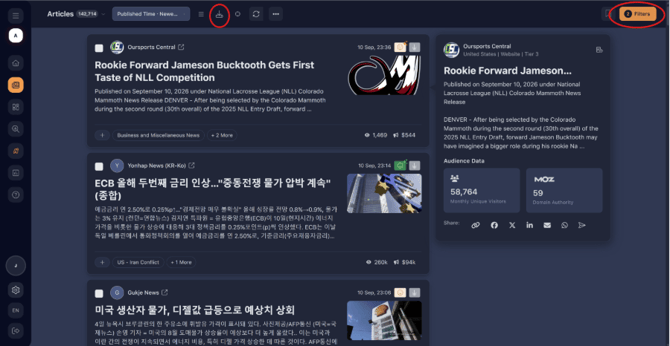
- On the Articles page, apply the filters you need from the top-right (date range, media type, sentiment, and so on).
- Select the Export button at the top of the page.
Apply your filters, then select Export
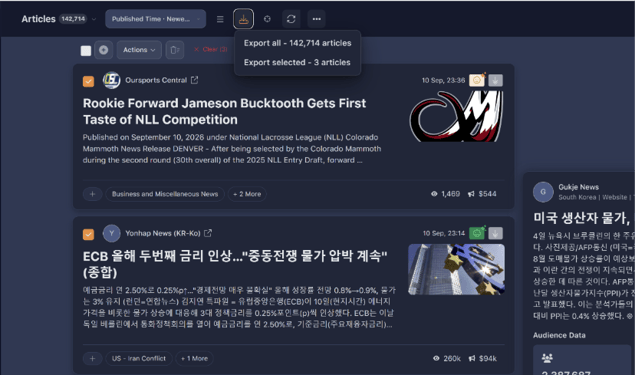
Choose which articles to export
- Select Export all to export every article that matches the applied filters.
- Select Export selected to export only the articles currently shown on the page.
Export all matching articles, or only the ones selected
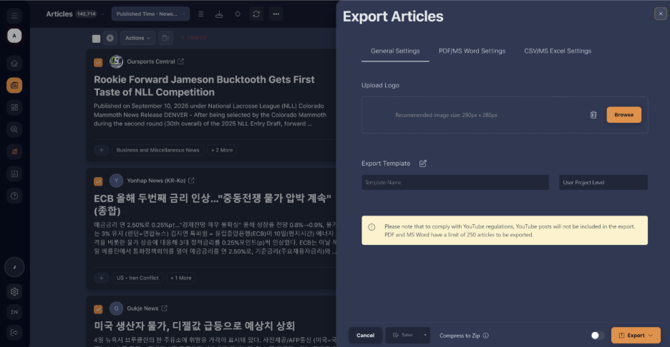
Choose your export settings
- When the settings panel appears, choose how you’d like to export the articles.
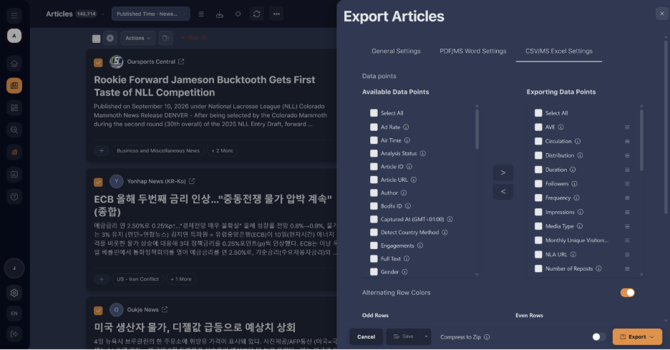
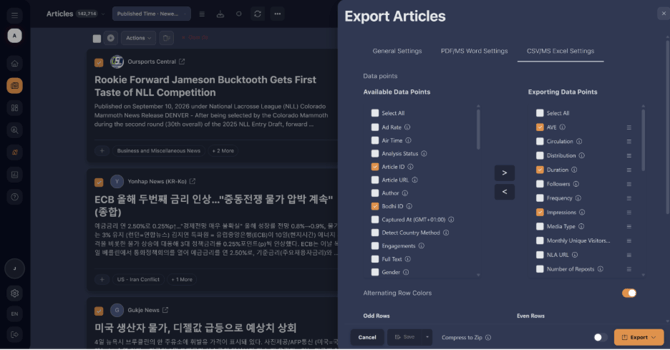
- Select CSV / MS Excel Settings to choose which metrics and tags are included. Everything in the right-hand column will appear in your export.
- To add or remove a data point, select it in the left-hand column and use the arrows between the columns to move it across.
Choose the metrics and tags to include in your export
Export your file
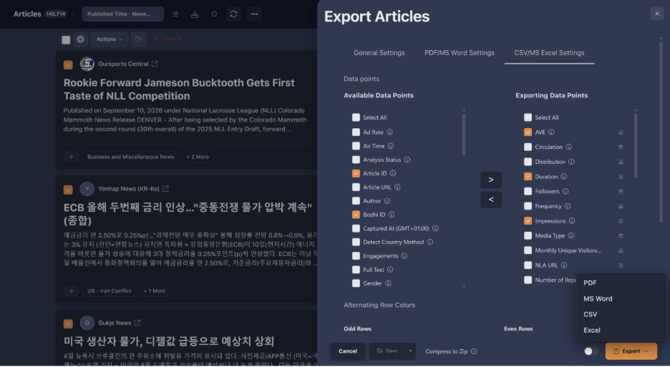
Select the Export dropdown in the bottom-right to choose the format you want.
Choose your export format
Need more help? If your export doesn’t contain what you expect, contact your CARMA representative or support team, and include the filters and export settings you used.