![CARMA Stacked Negative Logo.png]](https://help.carma.com/hs-fs/hubfs/CARMA%20Stacked%20Negative%20Logo.png?height=40&name=CARMA%20Stacked%20Negative%20Logo.png)
Step 1: Create a new article
- Click your username in the top-right corner of CARMA Insight.
- Select New Article from the dropdown menu.
- Complete the article creation form.
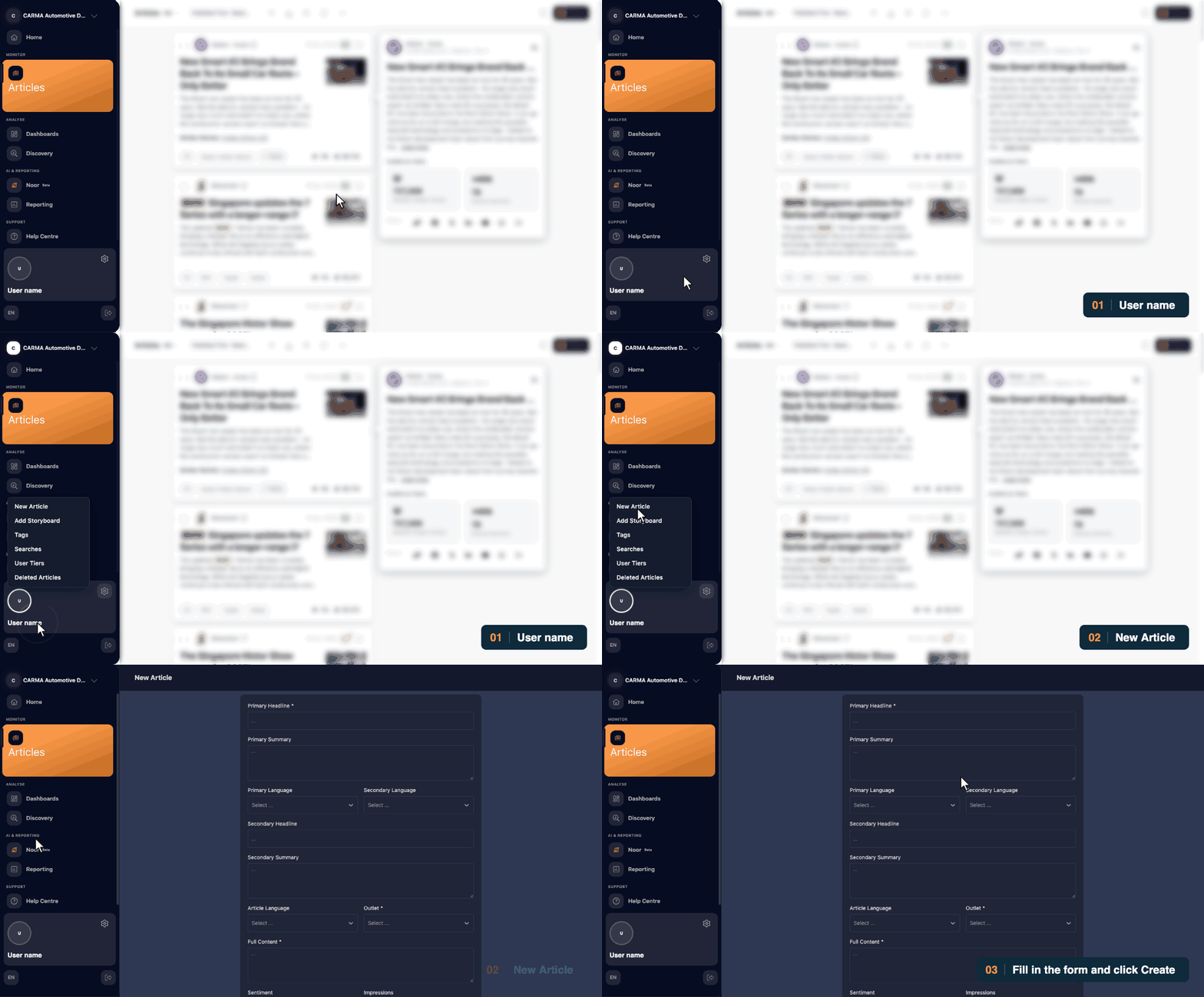
Step 2: Complete the article details
Fill in the relevant fields. Fields marked with an asterisk (*) are mandatory.
Most fields are self-explanatory, but here are a few things to keep in mind:
- Primary Headline & Summary: Use the original article's headline and a summary of its content.
- Secondary Language: If adding a translated version, ensure the secondary headline and summary match the selected language. For example, you can add an English version of an article originally published in Chinese.
- Article Language: Select the language of the original article.
- Outlet: Select the correct publication from the available list. Tip: You can check the outlet's name in Advanced Filters before selecting it.
- Full Content: Include the full article text where permitted. If the content is paywalled or copyright-protected, indicate this in the field instead.
- Tags: Select from the automated tags already available on the platform.
You can also add a source link, sentiment, impressions, AVE, and an asset for print articles, where applicable.
Step 3: Create your article
If the article is relevant to multiple projects, use Clone to Other Projects to add it to other projects you have access to.
Once you've completed the form, click Create.
Your article will be available under Monitor → Articles.
Note: Manually adding articles is only available for projects where this functionality has been enabled. If you don't see the New Article option, it may not be available for your project.