![CARMA Stacked Negative Logo.png]](https://help.carma.com/hs-fs/hubfs/CARMA%20Stacked%20Negative%20Logo.png?height=40&name=CARMA%20Stacked%20Negative%20Logo.png)
A single right-hand panel now separates frequently used Essential filters from more granular Advanced filters. You can also pin eligible Advanced filters to Essential for quicker access. Watch the video walkthrough or check the tutorial below.
Choose the right filter view
Both views are available in the same panel. Start with Essential for routine work, then move to Advanced when your question needs more precision.
Essential
Use Essential for frequent monitoring and reporting tasks. It brings common criteria together, including Timeframe, Media Types and Outlet Tiers.
Advanced
Use Advanced for narrower or more specialist analysis. Available fields can vary by product, media type, account configuration and the data available to you.
A simple rule
If timeframe, media type and outlet tier answer the question, stay in Essential. If they do not, move to Advanced.
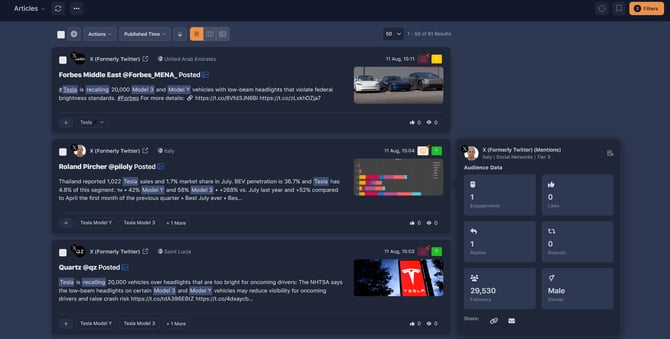 Open Filters from the top-right of the page.
Open the filter panel
- Go to the relevant page or dashboard.
- Select Filters in the top-right.
- The filter panel opens on the right-hand side.
- Choose Essential or Advanced at the top of the panel.
The number shown on the Filters button indicates active filters.
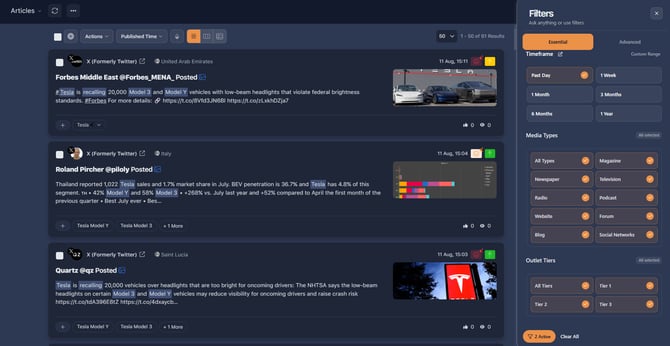 Essential keeps frequently used filters together in one view.
Good to know
Filter changes apply automatically as you select or deselect values.
Use everyday filters
Choose a timeframe
Select a preset period such as Past Day, 1 Week, Past 30 Days, Past 60 Days, 6 Months or 1 Year. Choose Custom Range when you need specific start and end dates.
Select media types and outlet tiers
You can include more than one value in a group. Selected values are highlighted and marked with a tick.
What does 'All selected' mean?
Every available value in that group is included. In practice, the group is not narrowing the results.
Review your active filters
- Review the selections in each group.
- Check the active-filter indicator at the bottom of the panel.
Before exporting or creating an output, check the active filters and record the timeframe and key criteria alongside the output.
Refine results with Advanced
Advanced filters are organised into six expandable groups so you can locate precise criteria without scanning one long list.
- Smart - AI-assisted and smart classification filters
- Classification - project coding and classification criteria
- Content - text, headline, sentiment and relevancy controls
- Outlets - outlet and source-based refinements
- Social - social-specific filtering options
- Reach - audience and reach-related criteria
Select a group to expand it, then choose the criteria needed for your analysis. The exact options can vary according to your access and available data.
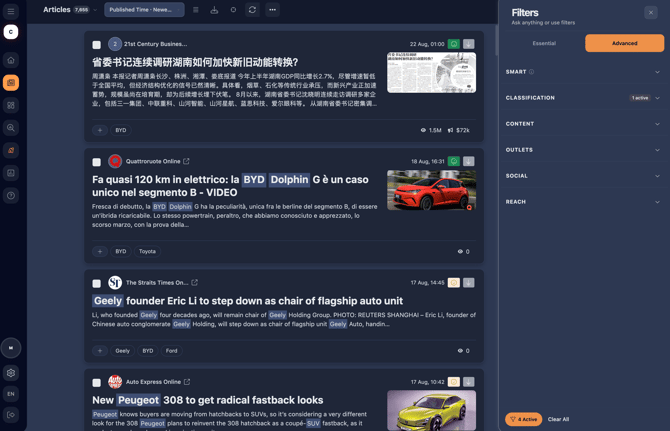
Advanced filters are grouped by purpose so precise criteria are easier to find.
Make Essential work for you
Pin eligible filters from Advanced to create quicker access to the controls you use regularly.
- Open Advanced.
- Expand the relevant group.
- Find the filter you want to use regularly.
- Select the pin beside the filter.
The filter is added to Essential and remains available in Advanced.
 Pin eligible Advanced filters for quicker access from Essential.
Personalisation, not filtering
Pinning changes where the filter is available. It does not apply a filter value to the current results.
Remove filters
Use Clear All to remove the current selections. To broaden only one part of the result set, deselect individual values instead. The results update automatically.
What happens to Saved Searches?
Your existing Saved Searches continue to work as before. The new Essential and Advanced organisation changes how you find and use filters; it does not remove or alter your saved searches.
Troubleshoot filter results
If you see fewer results than expected
- Remove the most specific criterion first.
- Broaden the timeframe.
- Check that the relevant media types are included.
Check filters when you move
Do not assume filters persist everywhere. Review the active-filter count and selections when changing account, view or product area.
Need more help?
If the issue continues, contact your CARMA representative or support team. Include the account, dashboard or page, selected filters, expected result, actual result, date and time, and a screenshot.