---
title: Use Noor on Dashboards
description: Learn how to open Noor on a CARMA dashboard, ask focused questions, check scope and filters, revisit conversations, and review AI answers responsibly.
---
[Skip to content](https://help.carma.com/use-noor-on-dashboards#main-content)
English
Show submenu for translations
![CARMA Stacked Negative Logo.png\]](https://help.carma.com/hs-fs/hubfs/CARMA%20Stacked%20Negative%20Logo.png?height=40&name=CARMA%20Stacked%20Negative%20Logo.png)
Open main navigation
Close main navigation
- English
Show submenu for translations
- Visit carma.com
Visit carma.com
Hello. How can we help you?
- There are no suggestions because the search field is empty.
1. [CARMA Help Center](https://help.carma.com/?hsLang=en)
2. [Noor](https://help.carma.com/noor?hsLang=en)
# Use Noor on Dashboards
## Move from seeing a change in the data to investigating it without leaving your dashboard.
**WHAT’S NEW?**
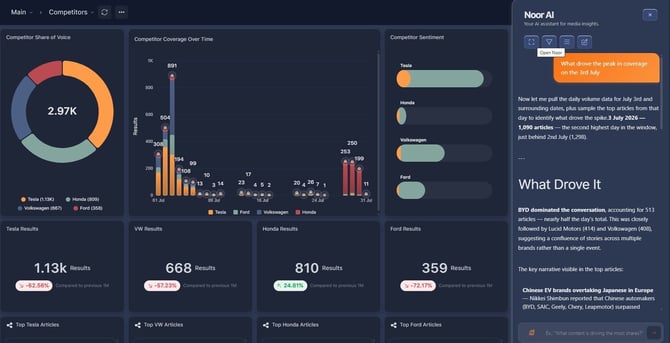
**Noor** is now available directly on dashboards. Select **Noor** in the top-right of a dashboard to open the assistant beside your data, ask focused questions and continue earlier investigations. Watch the video walkthrough or check the tutorial below.
**Open Noor on a dashboard**
1. Open the dashboard you want to explore.
2. Select **Noor** in the top-right.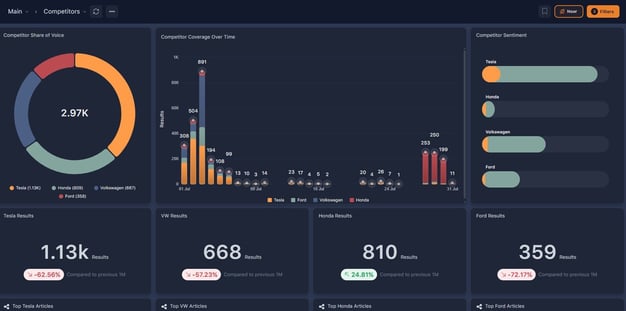
3. **Noor** opens in a panel on the right-hand side, while the dashboard remains visible.
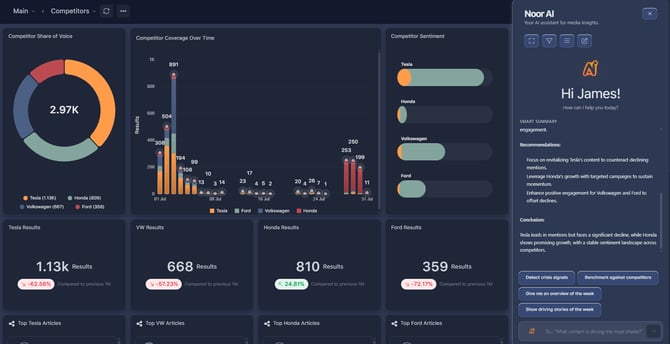
**Note: Noor** does not open automatically when a dashboard loads. Select **Noor** in the top-right to open the panel.
Users can ask **Noor** specific questions about the coverage displayed on the dashboard. **Noor** may present a compact summary of the dashboard data available to it. Use this as a starting point for exploration.
**Ask Noor a focused question**
Enter a question in the message box or choose a suggested prompt. **Noor** generates an answer using the dashboard context and data available at that point.
### Good starting questions
- Give me an overview of the week.
- What is driving the change in volume?
- What are the main sentiment themes?
- Which stories need attention?
For a stronger answer, state the question or decision, timeframe, brands or topics, market, measure and desired output format.
**Example prompt**
*Using the past seven days, list the three main drivers of negative sentiment for Brand X. For each, include the supporting coverage count and a cautious one-sentence implication.*
Ask Noor focused questions about the dashboard data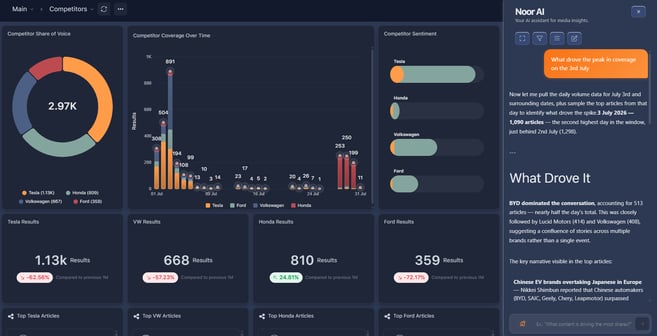
**Noor** is designed to work in the context of the current dashboard and the data made available to it. Active filters are important context, but you should confirm the scope described in the answer.
### Change the scope
Selecting the Filter button allows the user to amend the filters currently applied to
the dashboard, such as date range, sentiment, tiers and tags. After changing dashboard filters or refreshing recently ingested content, ask the question again.
Adjust the dashboard scope using filters such as timeframe, sentiment, outlet tiers and tags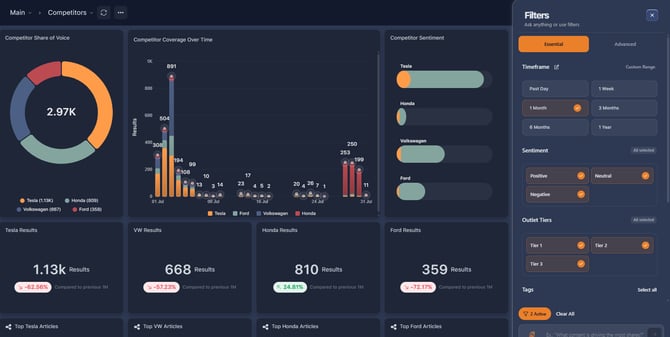
**When ambiguity is possible**
State the timeframe, market, brand or issue explicitly in your prompt - even when you expect **Noor** to infer it from the dashboard.
**Give yourself more room to investigate**
Expand **Noor** to fullscreen when you want more space to review a longer answer or work through several follow-up questions.
Select the expand control to open Noor in full screen
****
Use full-screen view when you need more space to investigate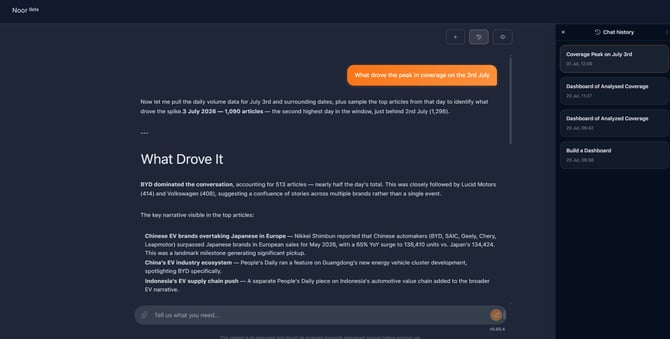
**Continue an earlier investigation**
Select **Chat history**, then choose a previous conversation to continue where you left off.
Use Chat history to return to a previous conversation.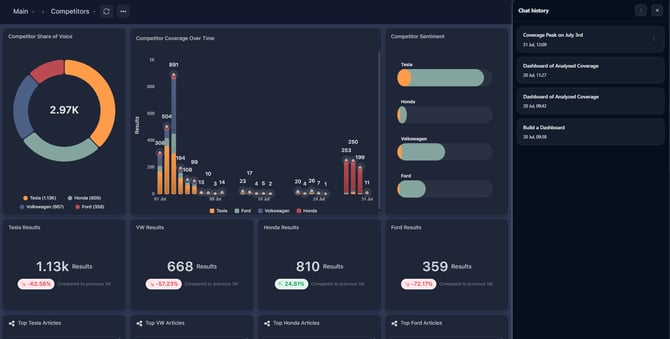
### Start a fresh investigation
Select the **new conversation** using the compose button indicated by the pen and paper icon, when you want to explore a different question. **Noor** returns to its starting state for a new line of enquiry.
Start a new conversation when you want to explore a different question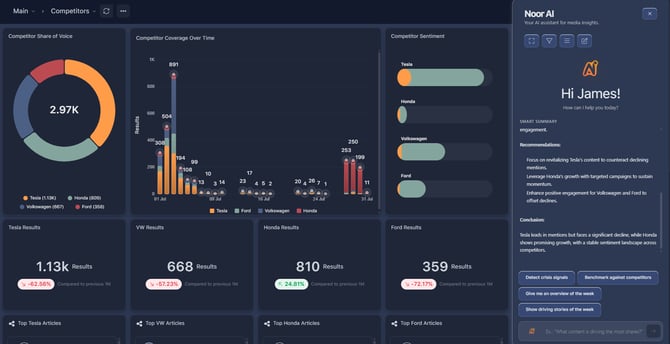
**Troubleshoot an unexpected answer**
If an answer does not look right:
1. Confirm the account, dashboard and selected view.
2. Review the active filters and timeframe.
3. Refresh the dashboard if data or filters changed recently.
4. Restate the required scope clearly in the prompt.
5. Ask again, then compare the answer with the dashboard and source coverage.
**Review before sharing**
**Noor** helps accelerate exploration and first-draft interpretation. Before sharing an answer or using it in a report, check important figures, dates, sentiment and conclusions against the dashboard and relevant source coverage.
**Need more help?** If the issue continues, contact your CARMA representative or support team. Include the account, dashboard, selected filters, exact prompt, full response, expected result, actual result, date and time, and a screenshot.
- [Monitor](https://help.carma.com/monitor?hsLang=en#main-content)
- [Home Page](https://help.carma.com/monitor?hsLang=en#home-page)
- [Articles](https://help.carma.com/monitor?hsLang=en#articles)
- [Collections](https://help.carma.com/monitor?hsLang=en#collections)
- [Analyse](https://help.carma.com/analyse?hsLang=en#main-content)
- [Dashboards](https://help.carma.com/analyse?hsLang=en#dashboards)
- [Socials Professional](https://help.carma.com/analyse?hsLang=en#socials-professional)
- [Discovery](https://help.carma.com/analyse?hsLang=en#discovery)
- [AI & Reporting](https://help.carma.com/ai-reporting?hsLang=en#main-content)
- [Newsletters](https://help.carma.com/ai-reporting?hsLang=en#newsletters)
- [Alerts](https://help.carma.com/ai-reporting?hsLang=en#alerts)
- [Noor](https://help.carma.com/noor?hsLang=en)
- [Support](https://help.carma.com/support?hsLang=en#main-content)
- [Settings](https://help.carma.com/support?hsLang=en#settings)
- [CARMA Mobile App](https://help.carma.com/support?hsLang=en#carma-mobile-app)
- [Metrics & Technical knowledge](https://help.carma.com/support?hsLang=en#metrics-technical-knowledge)
- [News & Updates](https://help.carma.com/support?hsLang=en#news-updates)
[](https://carma.com/)
CARMA Delivering what matters
Copyright © 2026, KSA, UAE
```json
{
"@context" : "https://schema.org",
"@type" : "VideoObject",
"contentUrl" : "https://7328329.fs1.hubspotusercontent-na1.net/hubfs/7328329/video_assets/220457312810/inherited/web_optimized.mp4",
"dateModified" : "2026-08-27T10:48:34.573Z",
"duration" : "PT50S",
"height" : 720,
"name" : "CARMA Noor on Dashboards_full version",
"thumbnailUrl" : "https://7328329.fs1.hubspotusercontent-na1.net/hubfs/7328329/CARMA%20Noor%20on%20Dashboards_full%20version.mp4/medium.jpg",
"uploadDate" : "2026-08-27T10:48:34.571Z",
"width" : 1280
}
```